01 / FIND
Choose your listening posts
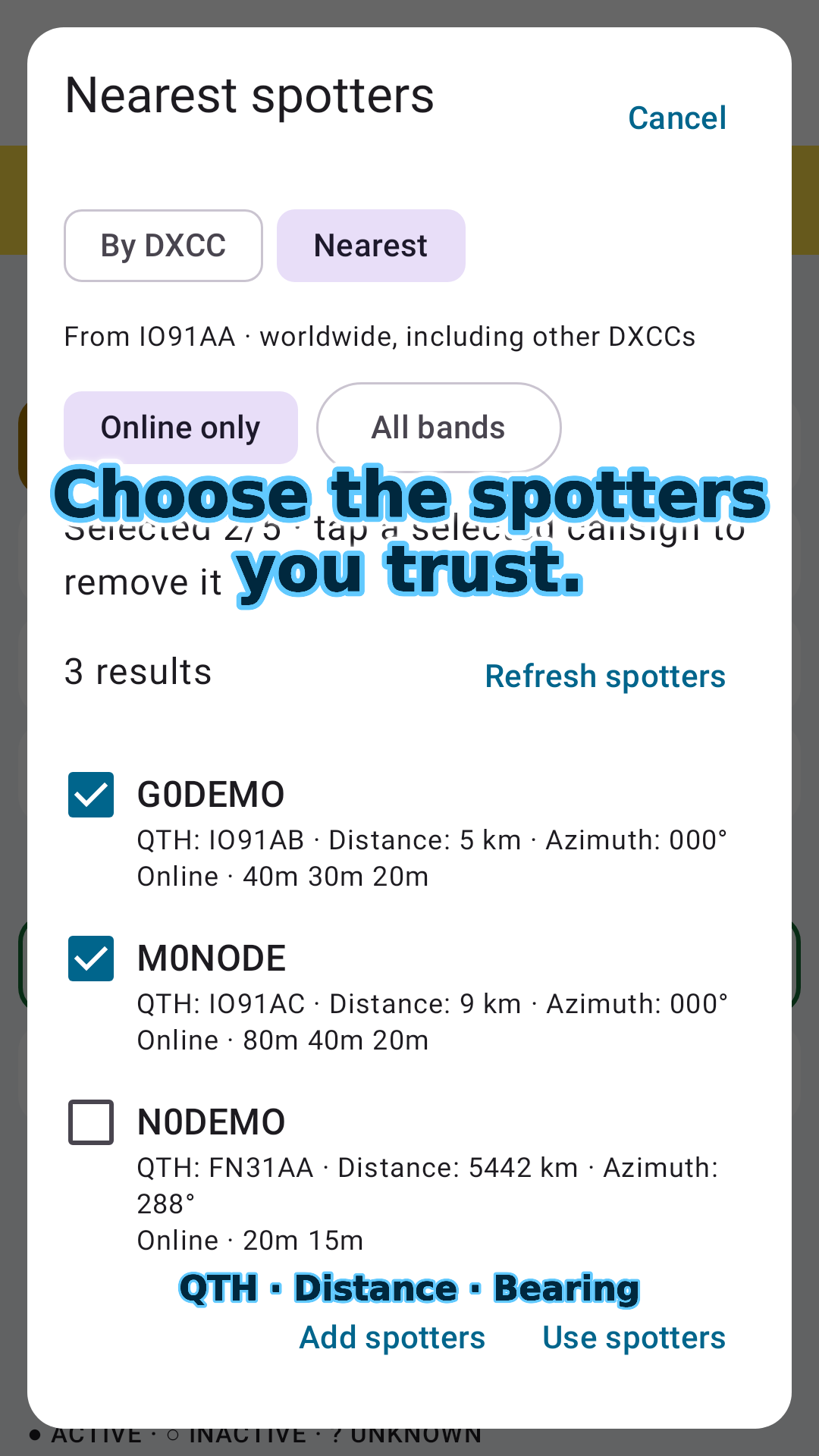
Select up to five spotters by DXCC or find nearby spotters from your home QTH. Compare dB and WPM without opening separate feeds.
POTA + WWFF · CW activity checked against local reception
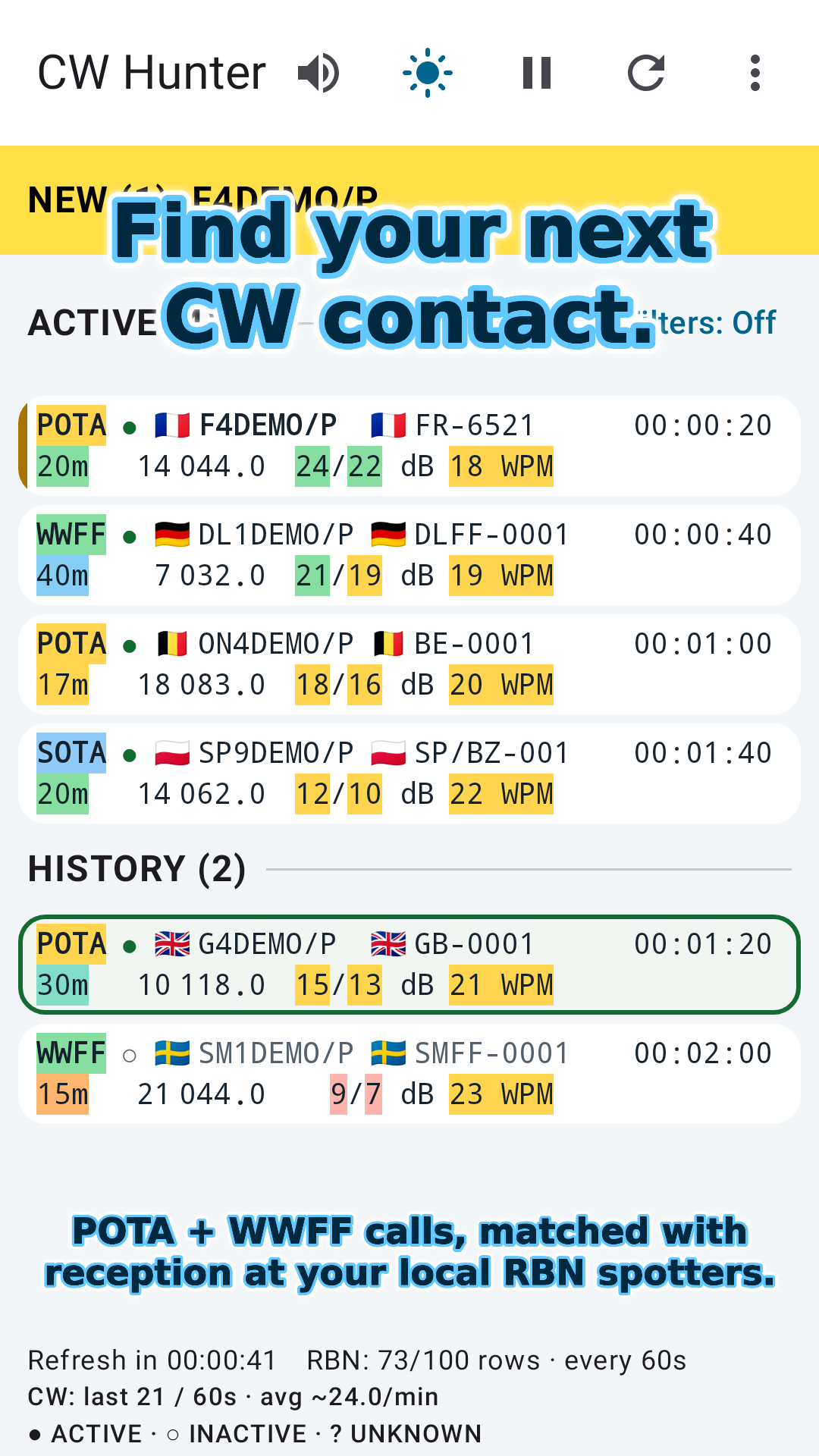
Find active CW stations already being heard near your QTH.
CW Hunter automatically matches POTA and WWFF activations with reports from your chosen RBN spotters. Choose listening stations near your QTH and get Morse alerts for promising contacts while you use the app.
Android 10 or later · Monitors while the app is visible
Heard near you. Worth a call.
Reception at a nearby spotter gives you a practical reason to try a QSO. Your own antenna, noise and propagation still determine whether you can make contact.
The checks you already make, automated
If you look for active calls on POTA.app or WWFF.co, then check a nearby RBN spotter to find out whether those calls are being heard in your area, CW Hunter is for you.
It automates that routine: fetch current CW activations, match them with reports from your selected spotters, and alert you to new qualifying stations. You can focus on tuning and making the contact while the open monitor handles the checks.
The Reverse Beacon Network is a network of volunteer listening stations, called spotters, that report which radio stations they hear, when, on which frequency and how well.
Choose up to five spotters, including nearby stations found using your home QTH. A CW callsign heard by one of those spotters is evidence of reception in that spotter’s area, helping you judge which activations offer a realistic chance of a QSO.
Checks run automatically while CW Hunter is visible. You can keep the screen on during a hunting session.
Explore the Reverse Beacon Network →A focused view of the bands
01 / FIND
Select up to five spotters by DXCC or find nearby spotters from your home QTH. Compare dB and WPM without opening separate feeds.
02 / FOCUS
Filter by band and spotter. Set lower or upper dB limits globally or per band. Sort by activity, frequency, signal, speed or distance.
03 / FOLLOW
New activations stand out. Friends get their own alerts. ACTIVE and HISTORY keep current opportunities and older entries easy to distinguish.
Listen at your own pace
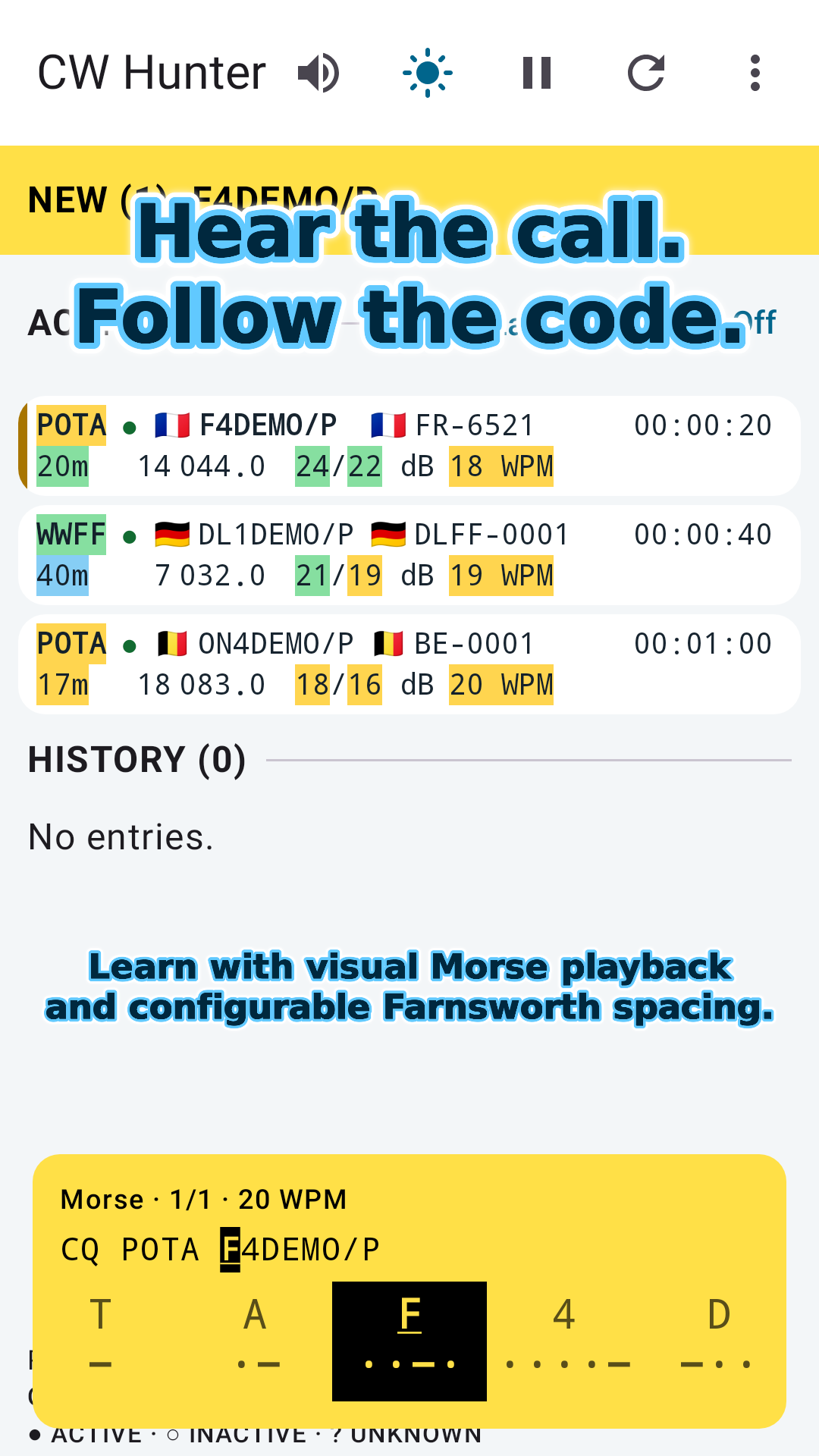
Play a program letter, the callsign alone or a full CQ announcement. Follow the current character and its code on screen.
Farnsworth spacing keeps character speed while giving you more time between letters and words. Adjust speed, pitch and pauses in Alerts.
CQ −·−· −−·−
Inside the app
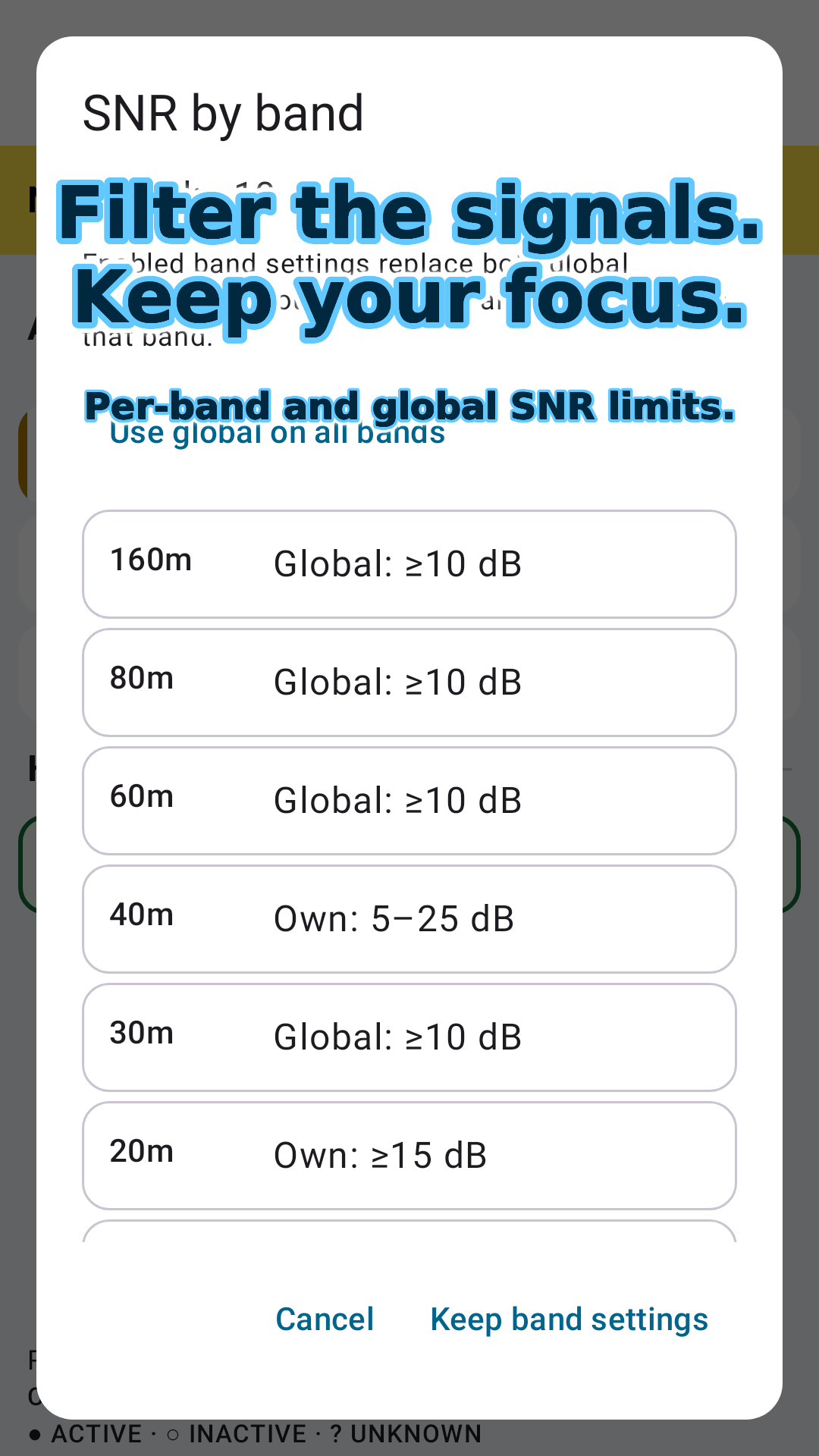
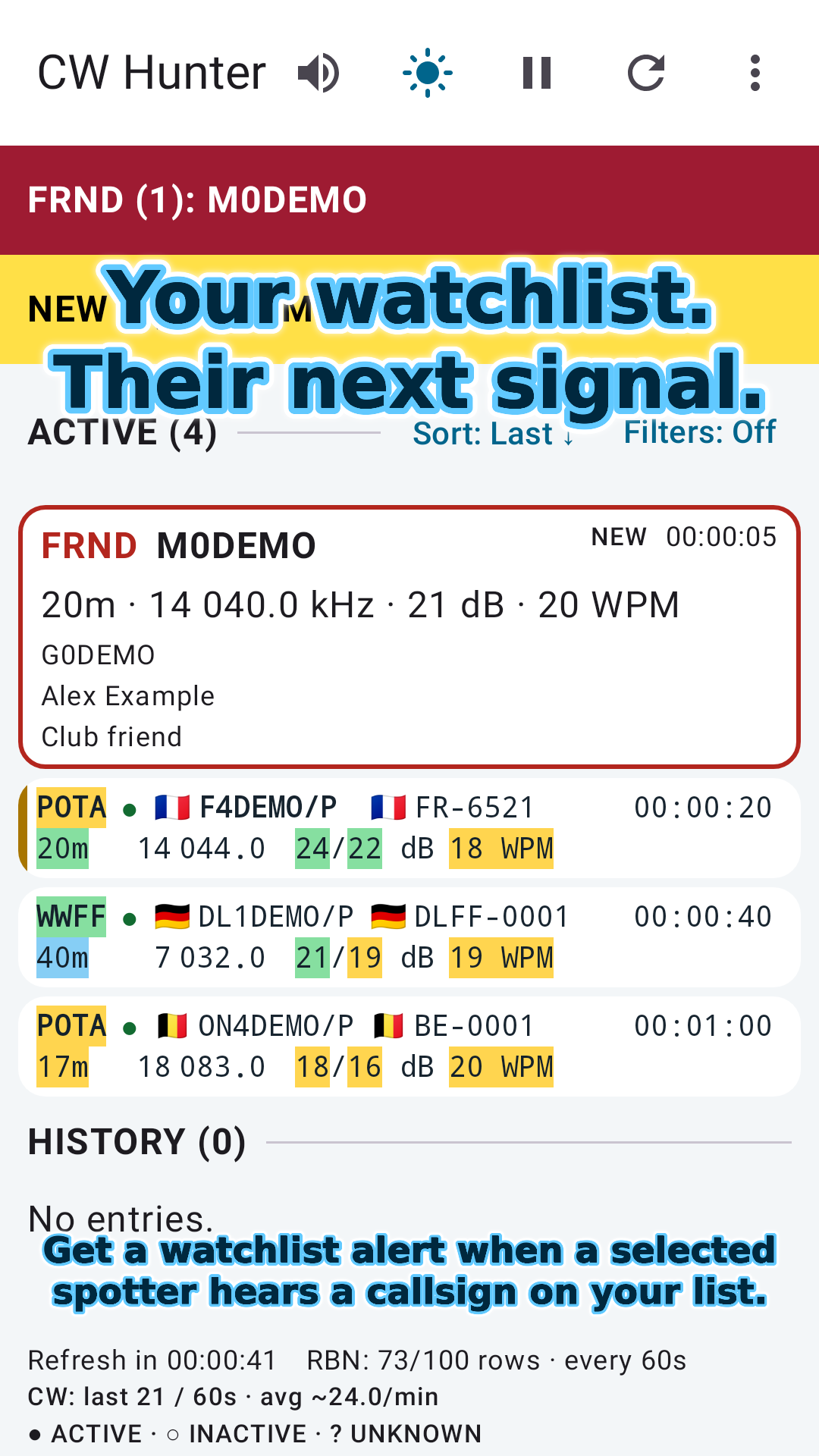
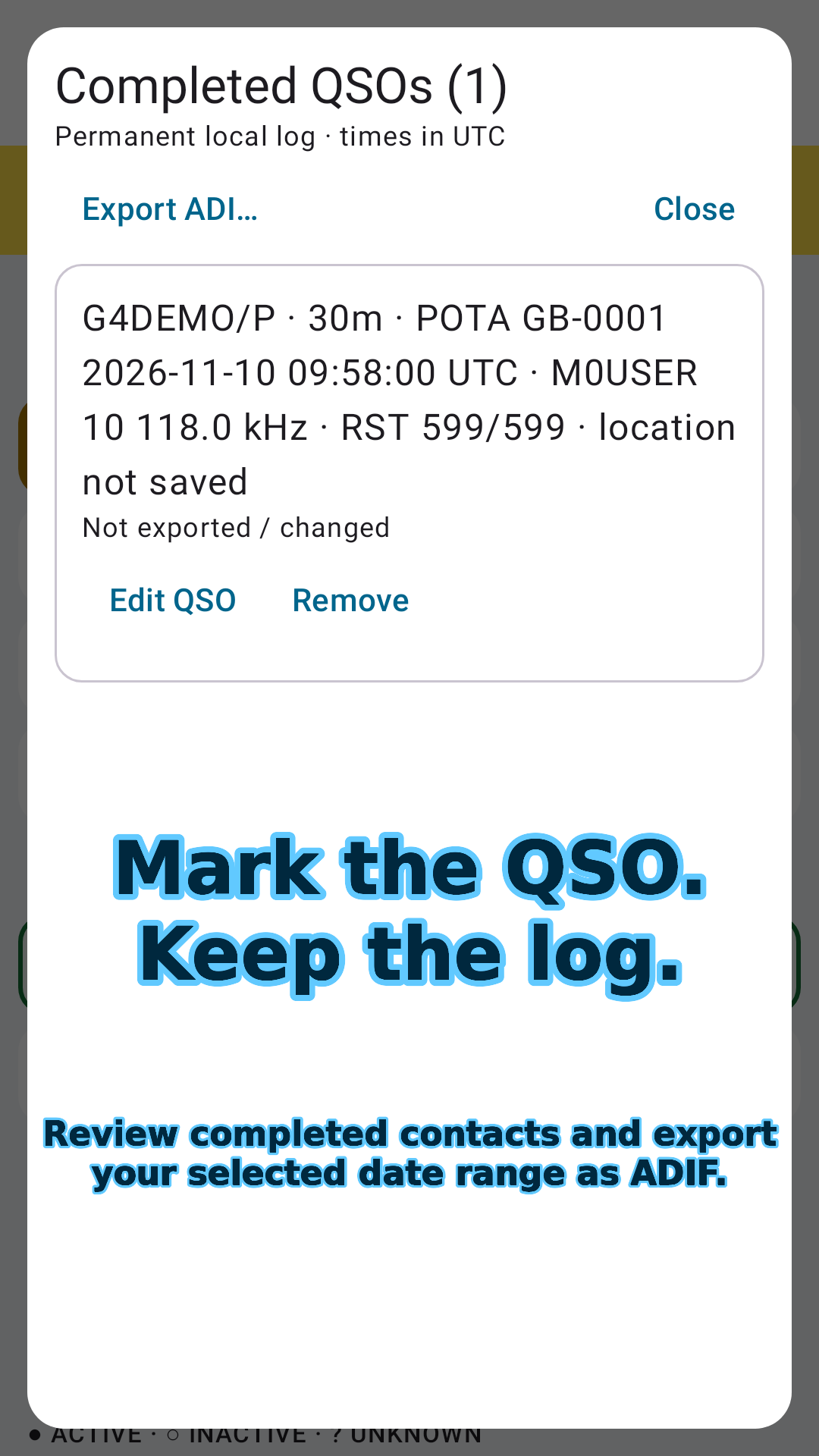
Screens show actual app components with illustrative data. SOTA examples use imported local data.
Start simply
The first-run interactive tour explains the essentials. You can skip it or replay Quick tour from the menu.
Read the quick-start guide →Before you tune in
It automatically cross-checks POTA and WWFF CW activations with reception reports from your chosen RBN spotters. Choose spotters near your QTH to identify calls already being heard in your area, then tune your radio and try the QSO.
No. It follows online activation and RBN reports and plays generated Morse alerts. Use your own radio to listen and make contacts.
POTA and WWFF use online feeds. SOTA works through local JSON import; the app does not connect directly to the SOTA API. Friends can be reported independently of activation programs.
No. Monitoring, alerts and logging work without QRZ. Sign in with your own QRZ credentials only if you want optional operator details. The QRZ.com browser link remains available.
Monitoring pauses when the app is no longer visible. Use Keep screen on to prevent automatic screen dimming while the monitor is open.
Yes. The companion Python monitor provides a terminal table, signal and band filters, Friends from CSV, Morse alerts and local CSV logs. It is separate from the Android application.
No. CW Hunter is an independent application. Program names and third-party services belong to their respective owners.
Choose the signals that matter to your station.